


How to set up Digital Marketing Audit with Claude
Three things before you begin:
- A Claude account – Free, Pro, Max, Team, or Enterprise. Custom connectors are currently in beta; Free accounts can add a single custom connector.
- An active Digital Marketing Audit subscription. The connect, audit, and report tools require a valid subscription on your account.
- Sign-in access to the Google Ads and/or Meta Ads accounts you want to audit. You’ll authorize these during setup – DMA never sees your ad-platform passwords.
Step 1
Set up your account
- Go to app.digital-marketing-audit.com and create an account (or sign in).
- Choose a plan and confirm your subscription is active. The connector reads your subscription state to authorize requests.
- Stay signed in to DMA in your browser – this lets Claude auto-connect your session in the next step instead of a fresh login.
Step 2
Add the connector in Claude
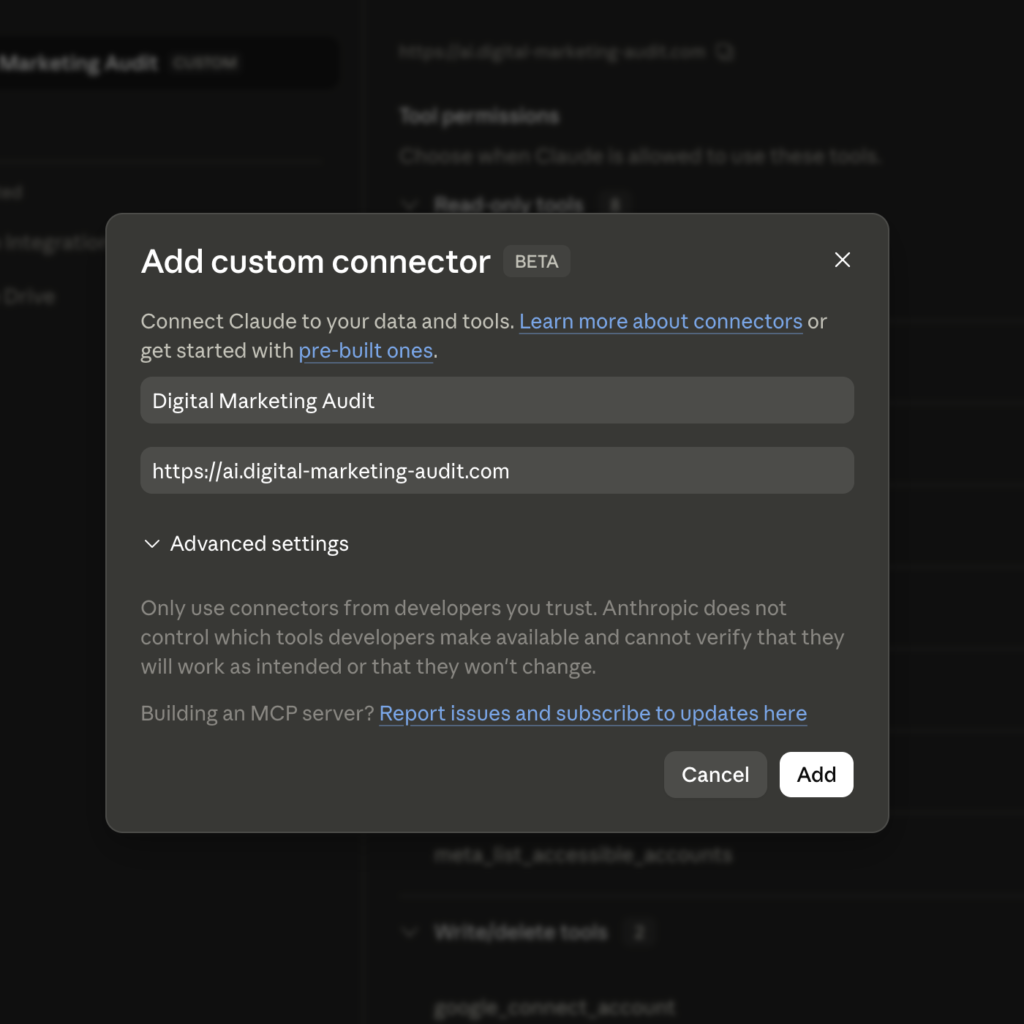
Add Digital Marketing Audit as a custom connector using the remote MCP URL from the top of this page:
https://ai.digital-marketing-audit.com/mcp
Pro & Max plans
- Open Claude and go to Settings → Customize → Connectors.
- Click “+”, then “Add custom connector.”
- Paste the remote MCP server URL above.
- Click “Add.” You can leave Advanced settings empty – DMA handles authentication through OAuth discovery, so no Client ID or Secret is needed.
Team & Enterprise plans
On Team and Enterprise, an Owner adds the connector for the organization first; members then connect individually.
- Owner: go to Organization settings → Connectors → Add, hover “Custom,” select “Web,” paste the MCP URL, and click “Add.”
- Members: go to Customize → Connectors, find Digital Marketing Audit (it carries a “Custom” label), and click “Connect.”
- Go to app.digital-marketing-audit.com and create an account (or sign in).
- Choose a plan and confirm your subscription is active. The connector reads your subscription state to authorize requests.
- Stay signed in to DMA in your browser – this lets Claude auto-connect your session in the next step instead of a fresh login.
Step 3
Authenticate
After adding the connector, Claude will prompt you to sign in:
- Click “Connect.” Claude opens the DMA sign-in page in a secure OAuth window.
- Approve the requested permissions. If you’re already signed in to DMA, the session is detected and you’re connected automatically.
- You’re returned to Claude with the connector marked Connected. Claude authenticates on your behalf and never sees your password.
Step 4
Connect your ad accounts
With the connector authenticated, link the ad platforms you want to audit. In any chat, enable the connector first via the “+” button → Connectors, then toggle Digital Marketing Audit on for that conversation.
Then ask Claude to connect each platform:
Claude runs google_connect_account, which opens a Google OAuth window. Approve it, and Claude follows up with google_list_accessible_accounts to confirm your customer IDs. Repeat for Meta:
You’ll see your Meta ad account IDs (in act_XXXXXXXXX form) once meta_connect_account completes.
Step 5
Run your first audit
You’re ready. Point Claude at an account and ask for findings:
Quick audit
Run an audit on Google Ads account 123-456-7890 and summarize the top findings by monthly impact.
Find wasted spend
Find broad-match search terms in 123-456-7890 that are spending without converting.
Generate a report
Generate a CFO-ready markdown report for Meta ad account act_123456789.
Claude maps these to the relevant audit, wasted-spend, and report tools, then returns findings with estimated recoverable impact
Tools Reference
The connector exposes ten tools across both platforms. Connect tools open an OAuth window; everything else is read-only.
google_connect_account opens OAuthOne-time handshake to connect your Google Ads account.google_list_accessible_accountsLists the Google Ads customer IDs you can access.google_audit_accountRuns the full audit playbook for one account and returns top findings.google_find_wasted_spendSurfaces costly broad-match search terms that aren't converting.google_generate_audit_reportProduces a CFO-ready markdown report for one account.meta_connect_account opens OAuthOne-time handshake to connect your Meta Ads accounts.meta_list_accessible_accountsLists the Meta ad accounts you can access.meta_audit_accountRuns the Meta audit playbook for one ad account and returns top findings.meta_find_wasted_spendFinds ad sets and ads spending with no purchases or leads.meta_generate_audit_reportProduces a CFO-ready markdown report for one ad account.Permissions & data
- Read-only by design. The audit, list, find, and report tools only read your account data — they never pause, edit, or delete campaigns.
- You control access. The connect tools use OAuth, so DMA acts on your behalf without ever receiving your Google or Meta password. Revoke access anytime by disconnecting in Claude’s settings or in the platform’s own security settings.
- Only what you authorize. Claude can reach only the accounts you grant during the connect step.
- Connection origin. Claude connects to the DMA server from Anthropic’s cloud, not your local machine — so the server is reachable over the public internet by design.
A note on tool approvals
Review Claude’s tool-approval prompts before allowing them, and only choose “Allow always” for tools you’re comfortable running unsupervised. You can disable individual tools per conversation from the “Search and tools” menu.
Troubleshooting
Review Claude’s tool-approval prompts before allowing them, and only choose “Allow always” for tools you’re comfortable running unsupervised. You can disable individual tools per conversation from the “Search and tools” menu.
The connector shows "Disconnected"
Re-authenticate from Customize → Connectors by clicking Connect again. Confirm your DMA subscription is active — an expired subscription will block the connection.
No accounts appear when I list them
Make sure you completed the Google/Meta OAuth window and signed in with the login that actually has access to those ad accounts.
Re-run google_connect_account or meta_connect_account and approve all requested permissions.
The Connect steps keeps looping
Disconnect the connector, confirm you’re signed in to DMA with an active subscription, then re-add it. If the OAuth window won’t complete, use the manual API-key fallback under Advanced settings.
My team can't see the connector
On Team and Enterprise plans, an Owner must add the connector at the organization level first. Members then connect it individually from Customize → Connectors.
I need to change the connector URL
Connectors can’t be edited in place. Remove the existing one from Customize → Connectors, then add it again with the updated URL.
Support
Stuck, or want a walkthrough with a sample account?
Reach out and we’ll help you get connected: mert.dokumcu@digital-marketing-audit.com.